Before Updating your Quess application on iPad

Verify that all practical training and assessment segments have been synchronized before proceeding with
the update. Failing to perform a synchronization results in the loss of your data when updating QUESS-APP.
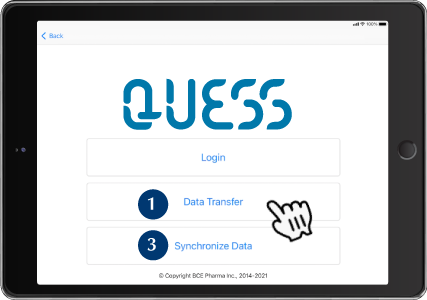


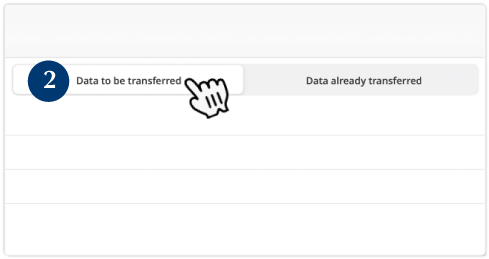
If the list is empty, it is safe to update your
QUESS-APP


Return to step 1 to verify that the “Data to be
transferred” list is empty.
If you encounter an error when synchronizing
the data, please, email a screenshot of the “Data
to be transferred” window to:
How to update your QUESS-APP?
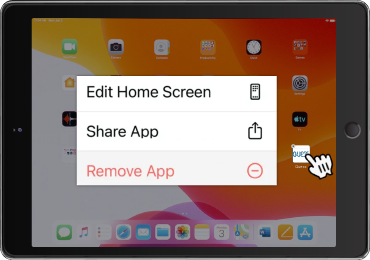
Delete QUESS-APP from the iPad. 
Tap and hold QUESS-APP icon.
Select “Remove App”.
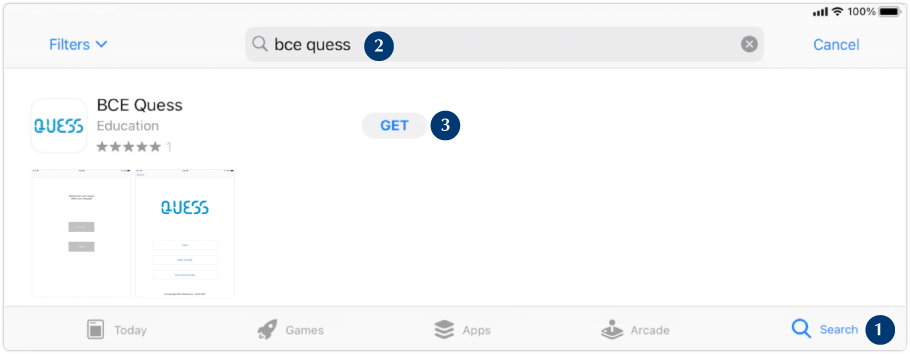
Open “App Store” application.